Before you begin
You'll need: a compatible device, carrier unlock, and a Wi-Fi connection to download the eSIM profile.
What is eSIM?

An eSIM (embedded SIM) is a digital SIM card permanently built into your device. You manage it entirely through software — downloading carrier profiles, switching between them, and activating plans without touching a physical card.
For European travel, eSIM eliminates the need to buy local SIM cards at each destination. A single regional plan covers 30+ countries. You purchase online, receive a QR code, scan it, and you're connected.
No physical SIM swapping
Works in 30+ EU countries
Keep home number active
Step 1: Check Device Compatibility
Before purchasing an eSIM plan, verify that your device supports eSIM and is carrier-unlocked.
iPhone
Go to: Settings → General → About
If you see an "EID" field, your iPhone supports eSIM. Compatible models: iPhone XS and later (2018+).
Android
Go to: Settings → About Phone → EID
If an EID is shown, your device supports eSIM. Compatible: Samsung Galaxy S20+, Pixel 3+, and many others.
Carrier Lock: Even if your device has eSIM hardware, it must be carrier-unlocked to use third-party eSIM plans. Contact your carrier to confirm or request unlock.
Step 2: Choose a Plan
Select a European regional eSIM plan based on your travel needs:
| Trip Type | Recommended Data | Validity |
|---|---|---|
| Weekend trip | 3–5 GB | 7 days |
| 1–2 week holiday | 10–15 GB | 15–30 days |
| Extended travel / nomad | 20–50 GB | 30 days |
| Remote work / heavy use | Unlimited (throttled) | 30 days |
Step 3a: Install on iPhone
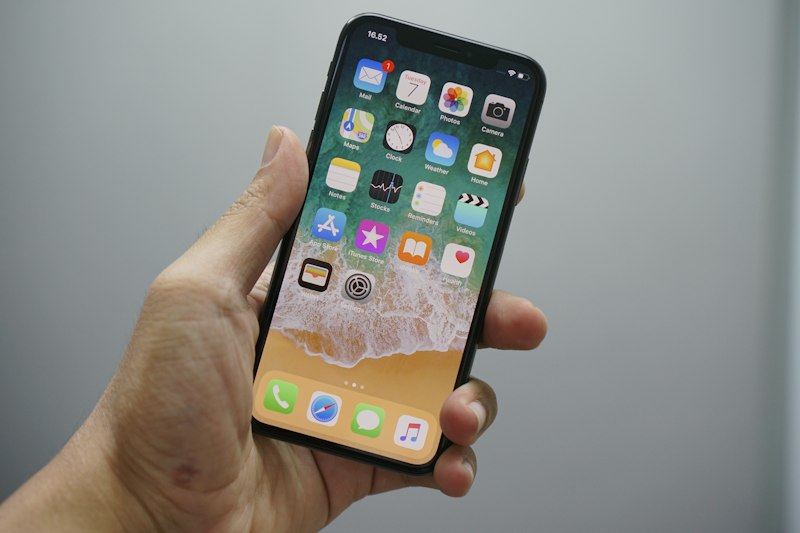
- 1Open Settings → Cellular → Add Cellular Plan
- 2Point your camera at the QR code from your provider
- 3Tap Continue when prompted to add the plan
- 4Give the plan a label (e.g., "Europe Travel")
- 5Set as Default Data Line and enable Data Roaming
Step 3b: Install on Android
Steps vary slightly by manufacturer, but the general process is:
- 1Open Settings → Network & Internet → SIM Manager (or similar)
- 2Tap Add eSIM or Download a SIM
- 3Scan the QR code from your provider
- 4Confirm installation and follow prompts
- 5Set as preferred data SIM and enable roaming
Step 4: Activate & Test
After installation, your eSIM is ready. When you arrive in Europe:
Pro Tips
Install before you travel
Download the eSIM profile on your home Wi-Fi. This avoids any issues activating on a foreign network.
Save your QR code
Screenshot your QR code and save it to cloud storage. Some providers charge for re-issuance.
Use dual SIM strategically
Keep your home SIM for calls and 2FA codes. Use eSIM for all data. Configure this in your phone's SIM settings.
Monitor data usage
Check your provider's app regularly. Set usage alerts if available to avoid running out unexpectedly.
Troubleshooting
No service after activation
Toggle Airplane Mode off/on. Check Data Roaming is enabled. Verify eSIM is set as default data. Wait 2–3 minutes for network registration.
QR code won't scan
Ensure good lighting. Hold camera steady 15–20cm from QR code. Try entering the activation code manually if your provider offers it.
Slow data speeds
Check if you've exceeded your high-speed data threshold. Move to an area with better signal. Toggle eSIM off and on to force network reselection.
eSIM not showing in settings
Restart your device. Check if your device is carrier-locked. Ensure you're running the latest OS version. Contact your provider if the issue persists.